Adobe Creative Cloud is acknowledged as industry standard software for creative designers across the globe as it features design essentials such as Photoshop, Illustrator, InDesign, Dreamweaver and now packs a punch allowing users to access various generative AI technologies. This includes Adobe’s Firefly, Google’s Nano Banana and many more – enabling the creation of both images and generative AI video.
Photoshop is a crucial part of the designers toolkit and is often used to fine tune colour in photography ready for publication, create web design mockups, assemble composites for a product launch or produce storyboards for film and video. Here are 5 (relatively!) new tools you may not have tried within Photoshop designed to streamline workflows and open up new creative opportunities:
1. Generative Fill and Generative Expand
Why designers like this
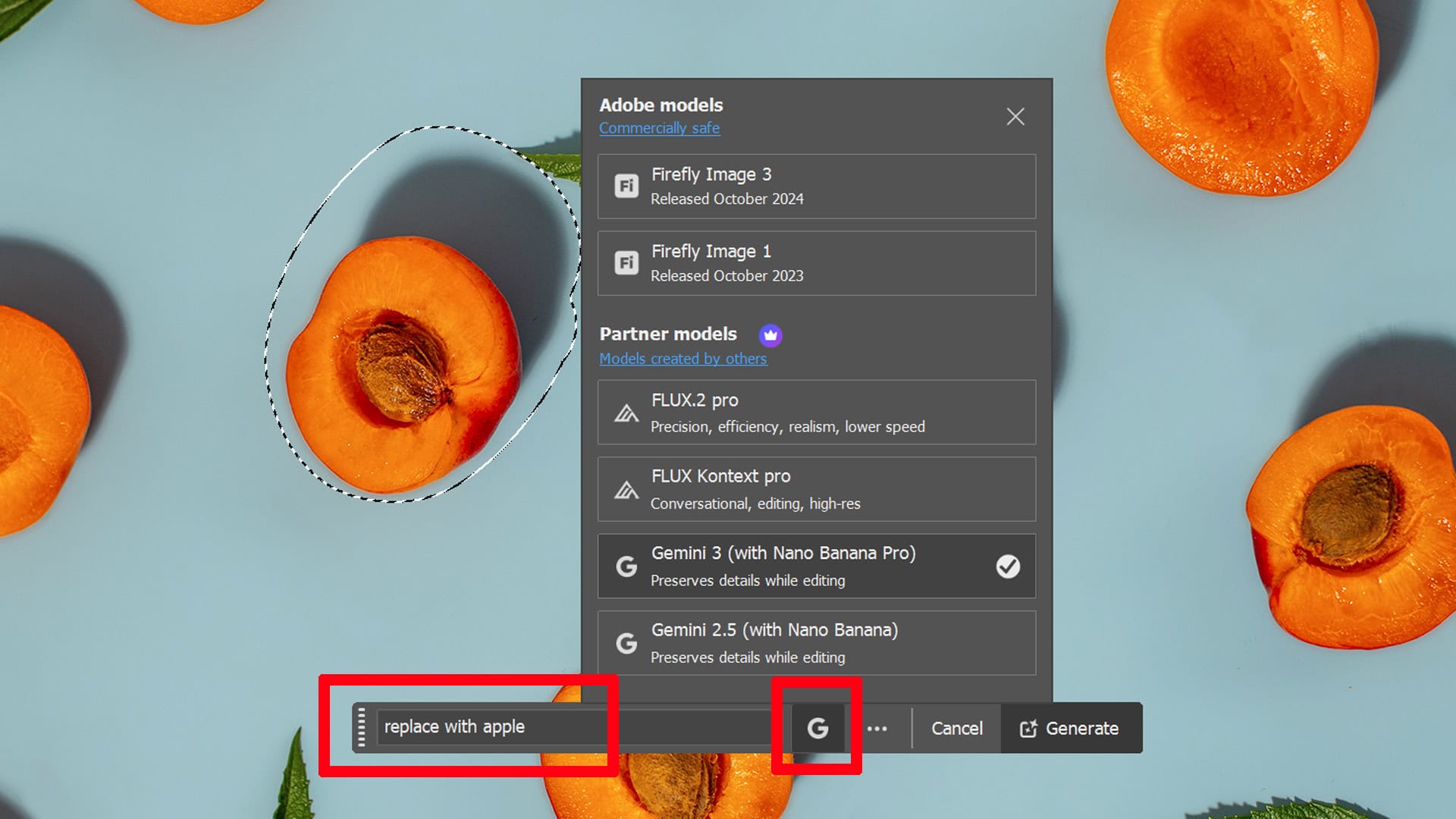
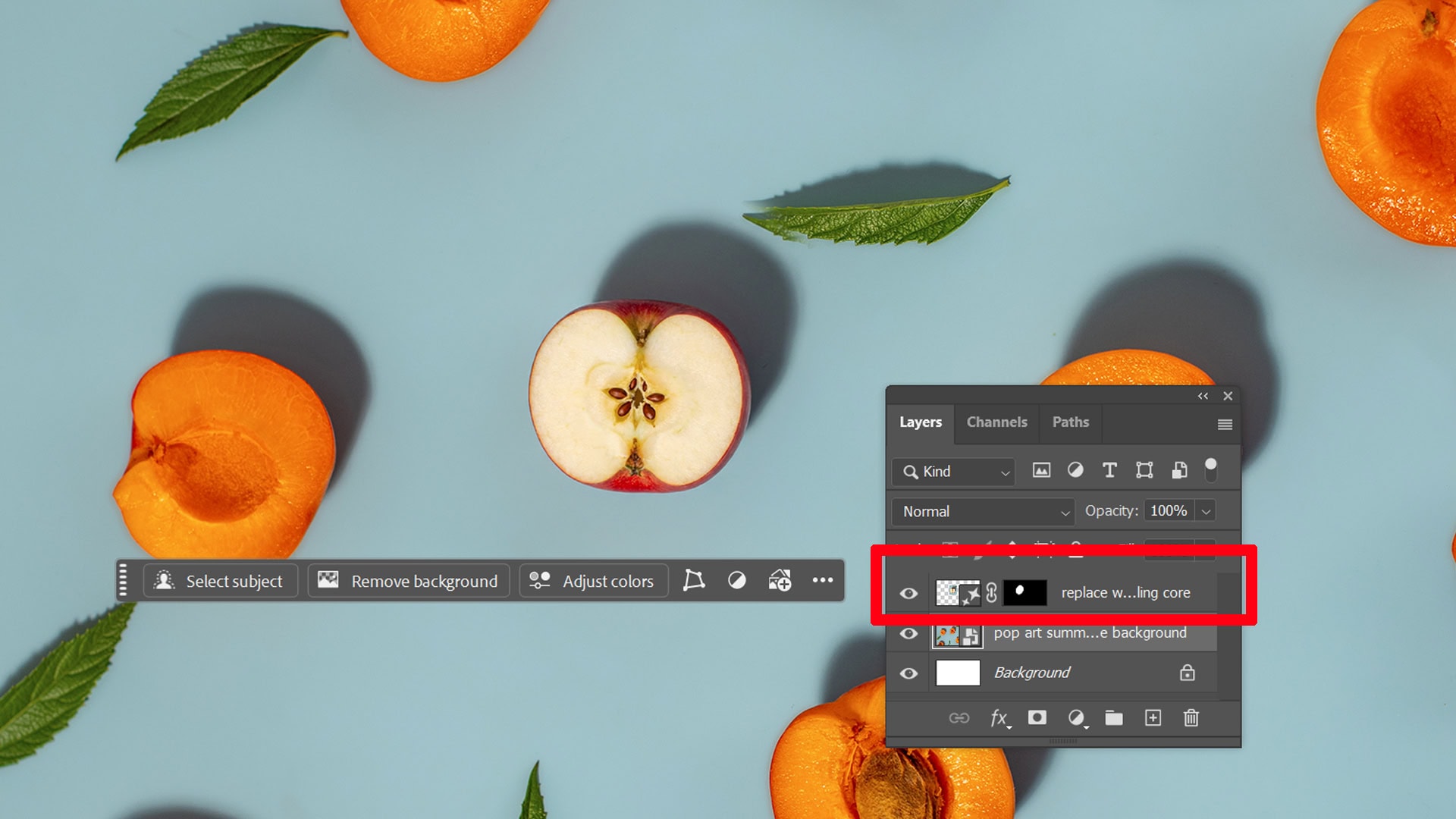
The ability to quickly replace objects, expand an image vertically / horizontally or alter the colour of specific areas opens up new creative options and streamlines processes. It is possible to switch AI models depending on whether you need cleaner product-style results, more “illustrative” outputs, or different texture realism — all without leaving Photoshop.
Using Generative Fill And Expand
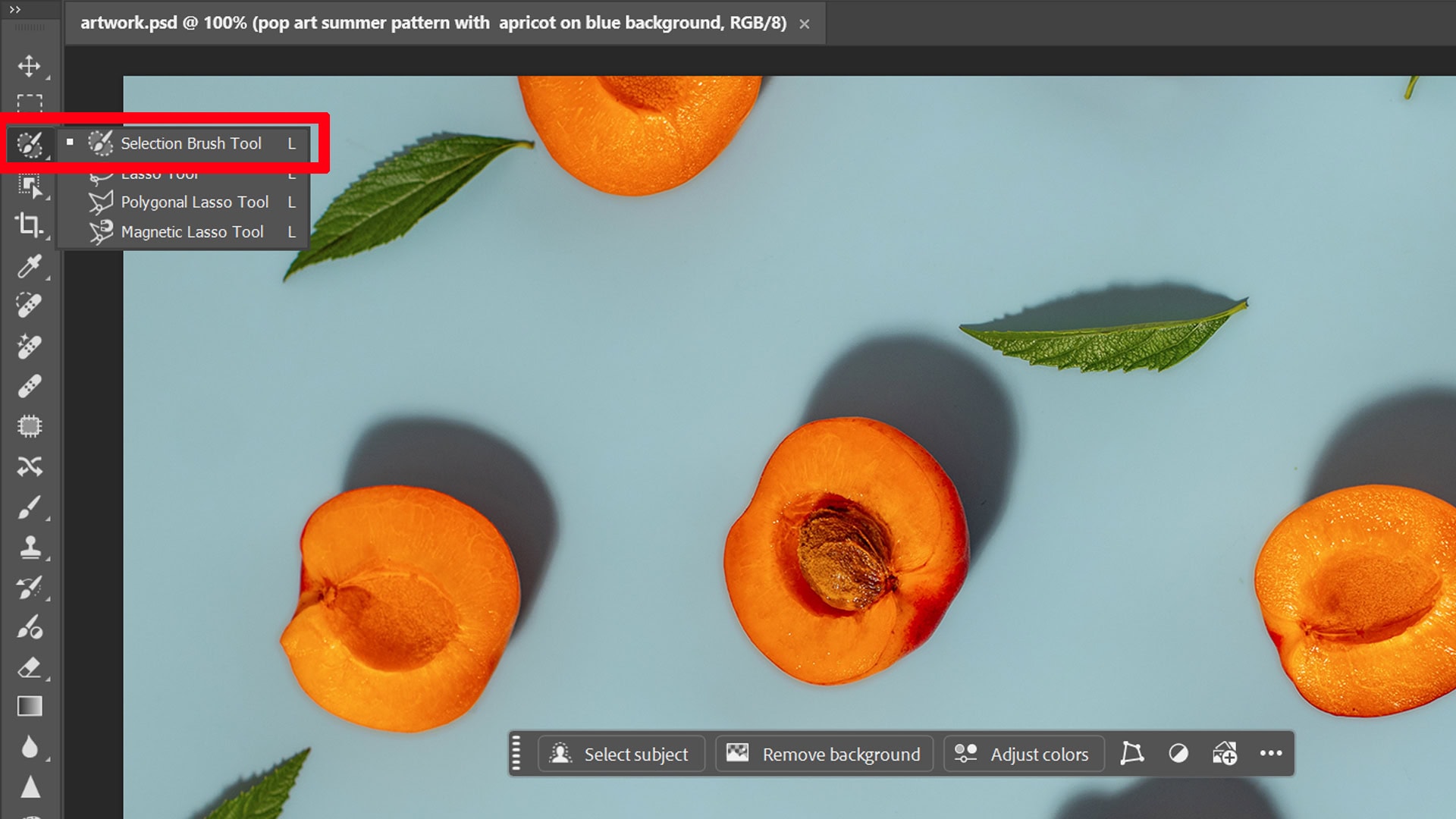
Select an area > Generative Fill in the Contextual Task Bar > pick an AI model. For Generative Expand use the Crop tool > expand to required proportions then use Contextual Task Bar.
Note: Some models do use credits to generate results.
2. Harmonize For Fast Compositing
Why designers like this
Harmonize auto-matches color, lighting, and shadows when adding objects to a scene (best used with transparency). I rapidly makes these adjustments in seconds to ensure the final composited products, buildings or vehicles look like they were part of the original scene.
Using Harmonize
Place subject on a pixel layer > Select Harmonize from the Contextual Task Bar > select choose a variation from the available generations.
3. Generative Upscaling With Topaz Bloom
Why designers like this
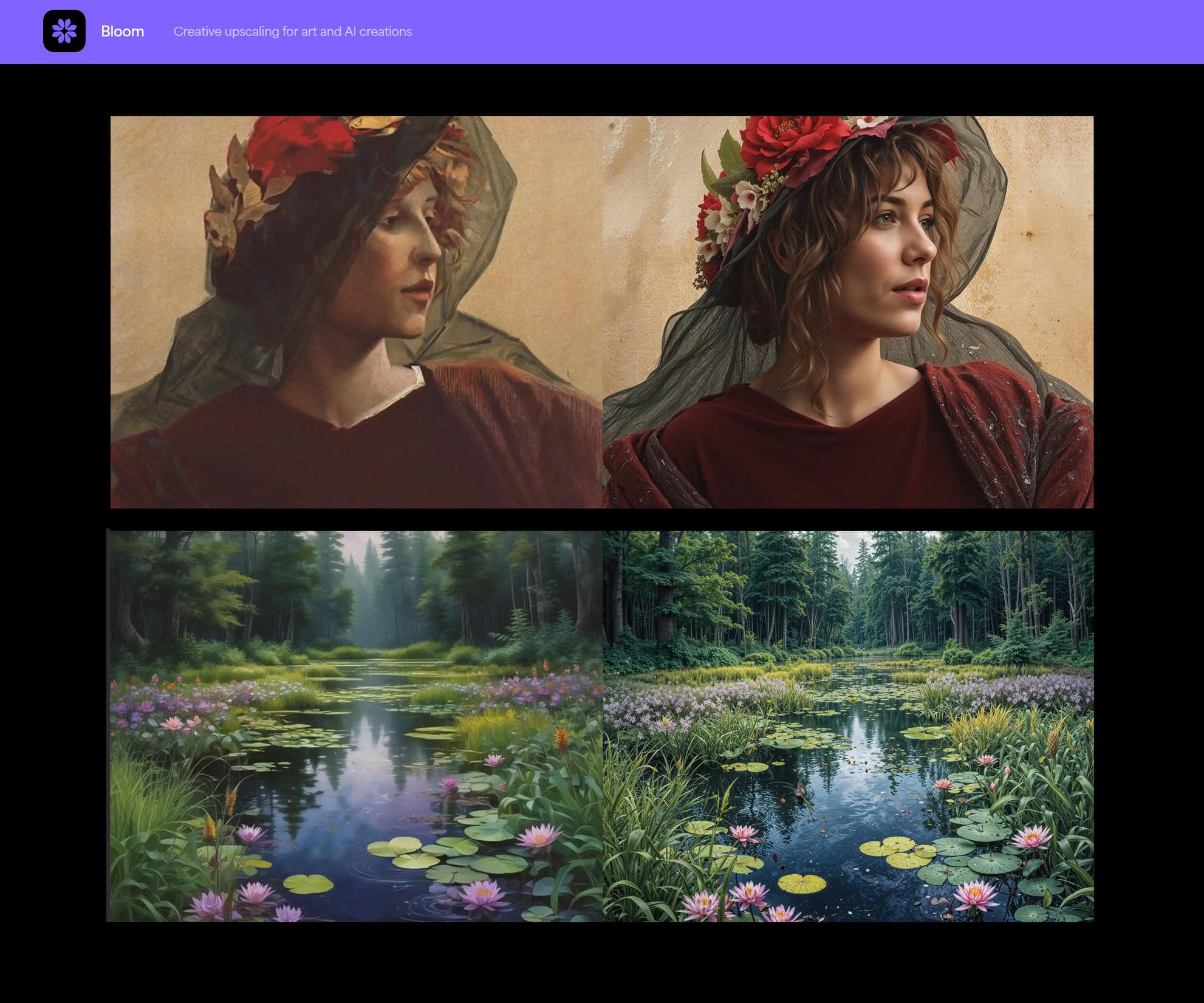
Topaz have led the way in upscaling technologies for the last few years and Adobe’s integration of Generative Upscaling using Topaz upscaling algorithms enables users to enlarge images with ease. This feature is useful when rescuing small client assets (logos in a photo, old campaign images, cropped bits) to a more usable resolution.
Using Generative Upscale
Go to Image > Generative Upscale.
Note: There are currently maximum image scaling limits of 6144px. It is possible to select between Adobe’s Firefly upscaling and Topaz Bloom (generative AI) or Gigapixel (non-generative).
4. Object Selection And Remove Distractions
Why Designers Like This
Photoshop improved their selection tool by allowing processing of images in the cloud, resulting in a cleaner selection resulting in less refinement work when masking. This is a real time saver for designers. The have also created a new find distractions tool that will auto-detect wires / cables or background people allowing for fast scene cleanup.
Using Find Distractions
Use the Remove Tool > Top Menu Bar > Find Distractions

5. New Color & Vibrance Adjustment Layer
Why Designers Like This
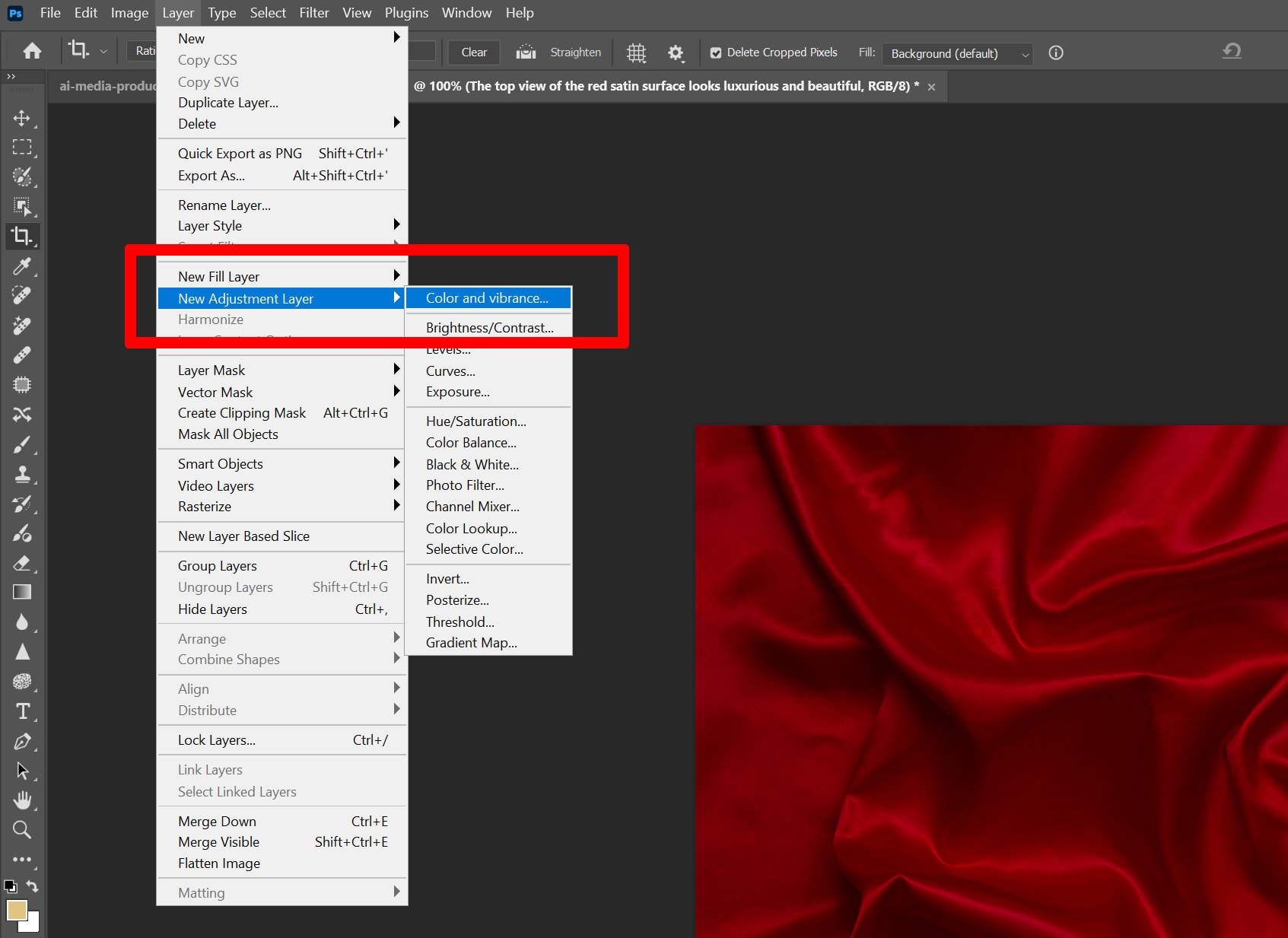
It is a new feature that creates a non-destructive way to handle temperature / tint / vibrance / saturation control as a layer adjustment. This retains flexibility during the editing process where previously a commitment was required.
Using Colour And Vibrance Adjustment Layer
Layers panel > New Adjustment Layer > Color and vibrance
More About Generative AI
Why Every Freelancer Should Experiment With Generative AI
AI And The Future Of Media Production